
Summary
Streamlining Your Workflow: Right-Click Compatibility Hits Rescheck Web
Streamlining Your Workflow: Right-Click Compatibility Hits Rescheck Web
About the Author: Jobe Leonard, Founder of Rescheck.info and Residential Energy Code Expert
Jobe Leonard is the creator of Rescheck.info, a leading resource dedicated to simplifying residential energy code compliance. With a deep passion for the evolution of the IECC and building science, Jobe helps professionals navigate the complexities of Rescheck Web and energy reporting free of charge via the massive and emmersive Reschexpert blog.

Jobe Leonard Rescheck.info
For years, the Rescheck Web project dashboard has been the central hub for managing residential energy code compliance. Whether you are a custom home builder, an architect, or a DIYer tackling a home addition, the goal has always been the same: get in, enter your data, and get that “Pass” certificate as efficiently as possible.
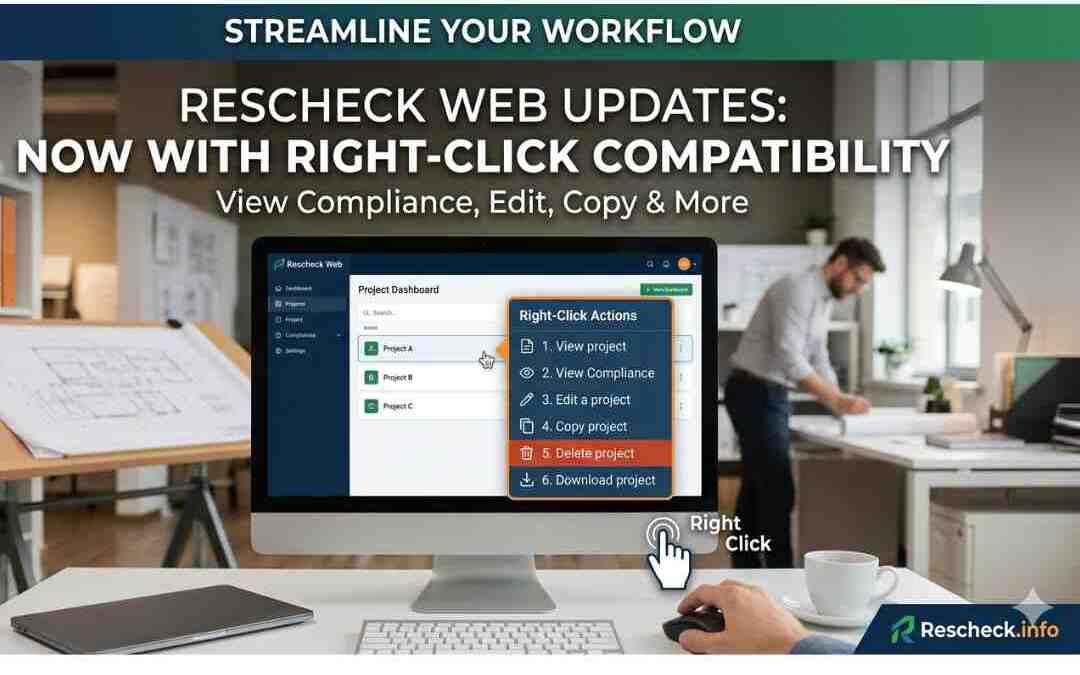
We are excited to highlight a significant “quality of life” update that is making waves in the 2026 construction season: Full Right-Click Compatibility on the project page.
Gone are the days of hunting for tiny icons or navigating through multiple sub-menus just to manage a single file. Now, a simple right-click on any project row unlocks a powerful context menu designed to speed up your energy reporting workflow.
The Power of the Right-Click: 5 Essential Actions
This update brings five core functions directly to your fingertips. Here is how you can use them to master your project dashboard:
1. View Compliance
Need a quick refresher on the square footage or window U-factors you entered last week? Select View Compliance to open the file in a read-only mode. This is perfect for a quick spot-check without the risk of accidentally changing your data.
This is the “moment of truth” button. By right-clicking and selecting View Compliance, the software instantly runs your inputs against your chosen energy code (such as IECC 2021 or 2024). You’ll immediately see if your building envelope meets the necessary requirements.
2. Edit Project
When it’s time to get to work—adding wall assemblies, adjusting insulation R-values, or updating the job site address—the Edit Project action is your primary tool. It jumps you straight into the active workspace so you can make those critical adjustments.
3. Copy Project
Efficiency is key when you are working on similar designs. If you have a “standard” model home or a frequent floor plan, use Copy Project to duplicate an existing file. It carries over all your envelope data to a new project, saving you from entering the same information from scratch.
4. Download Project
-
Download Project: Before you clear out your dashboard, use the Download feature to save a local backup or grab the necessary files for your building department submittal.
4. Delete Project
-
Delete Project: Keeping your dashboard clean is easier than ever. If a project was cancelled or was just a “test” run, a quick right-click and Delete will remove the clutter instantly.
Why This Matters for 2026 Projects
With the adoption of more rigorous energy codes like the IECC 2024, project complexity is increasing. Small UI improvements like right-click compatibility might seem minor, but they significantly reduce the “click-fatigue” that comes with managing dozens of compliance reports.
Next Steps
Ready to see these new features in action? Log in to your Rescheck Web account today and try out the new menu on your current projects.
If you find yourself overwhelmed by the new code requirements or simply don’t have the time to navigate the software yourself, we can help. Our team provides professional Rescheck reporting with a 4-6 hour turnaround for just $79. Email pdf plans, jobsite address, and square footage to service@rescheck.info and we will get you taken care of.
Rescheck Web Tutorial This video provides a helpful walkthrough of the Rescheck Web interface and shows how to manage and update your projects effectively.